
The workspace
The main window keeps your input and the new text side by side. You can refine the request before you decide what to do with the result.
Work with a passage
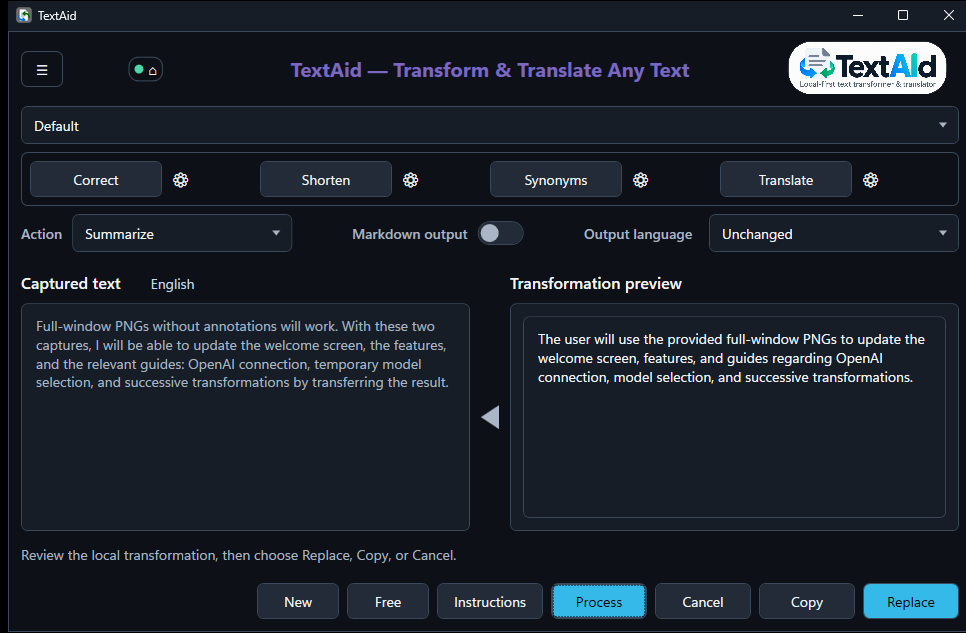
- Edit the text in Captured text if needed. Choose an Action from the list, or click one of the four preset buttons above it.
- Choose an Output language. Unchanged keeps the input language for ordinary actions.
- Choose Process to run the selected action. Read the Transformation preview before choosing Copy or Replace.
Choose a model for the next action
The model selector appears above the presets only when more than one active, configured model profile is available. Each choice identifies its connection type, model, and profile, so two connections using the same model name remain distinct.
- Default keeps normal action routing. It does not select a particular connection or change a saved profile.
- A specific choice pins that exact connection and model for the next action, including any required language identification. An explicit API-key choice is used even when OpenAI sign-in is also available.
- Changing the selector alone does not start a request. Choose it before Process, a preset, or a destination change that runs an action.
The selector returns to Default when the action finishes, fails, or is cancelled. A successful result stays usable, and the connection indicator continues to identify the provider that produced it. If the selected connection fails, choose what to use for a new attempt; TextAid does not silently substitute another provider.
With zero or one configured profile, the selector is hidden. Add or activate another connection in Settings when you need a choice.
Use a result as the next input
- Wait for a complete, successful result. The filled left-pointing triangle between the panes becomes available.
- Activate the triangle to replace all of Captured text with that result. The previous preview is cleared.
- Choose the next action and, if needed, a model or output language. Select Process, or use an action preset, to run the next transformation.
For example, correct a passage, transfer the correction, shorten it, then transfer the shorter version before translating it. Each action uses the current input.
Transfer carries the result’s known language into the input without another identification request. An automatic translation destination is reconsidered for the next action; a destination you explicitly selected is retained. Editing the transferred text makes its language eligible for identification again.
If the session began with a captured selection, Replace still targets that original selection and uses only the latest successful result. A manual or Free session keeps no replacement target. With Markdown, transfer uses the original Markdown text, just like Copy and Replace.
When you have no selection
Choose can open with no captured text. Type or paste directly into Captured text and run an action. You can also choose New to start a fresh input in the current window.
Free opens a separate input box for a direct request, such as “Draft a short, polite reminder about tomorrow’s meeting.” It does not keep a source selection to replace, so use Copy for its result.
Refine one run
Instructions lets you add guidance for this transformation, such as “Use a warmer tone.” It is temporary; changing the action’s permanent prompt belongs in Actions.
Switch on Markdown output when you want Markdown formatting. After processing, use the raw and rendered controls in the preview to inspect the markup. Leave it off for plain text.