
Actions and presets
An action tells TextAid what to do. A preset is one of the four quick buttons that runs an assigned action.
Actions supplied with TextAid
The initial action set covers common text tasks. Action names can also be given personal display-name overrides.
| Action | Use it for |
|---|---|
| Translate | Render the text in another language. |
| Correct | Fix spelling and grammar while preserving meaning. |
| Rewrite | Rephrase a passage. |
| Shorten | Make text more concise. |
| Expand | Develop a short passage. |
| Simplify | Make complex text easier to read. |
| Change tone | Adjust how a message sounds. |
| Summarize | Extract the main points. |
| Answer this mail | Draft a reply to an email. |
| Synonyms | Suggest alternative words. |
| Humanize | Make wording sound more natural. |
The default preset assignments are Correct, Rewrite, Summarize, and Translate. To change one, click the gear beside that preset in the main window and choose another action. The screenshots in this guide show a user's customized preset assignments.
Create or edit an action
- Open the application menu (☰) and choose Actions.
- Select an existing action, or choose New action.
- Set a display name, model profile, and output language. Enable Ask for user instructions and fill in Question to ask if the action should ask a question when run.
- Write the Prompt template. Use
{{text}}where the selected or typed text should go, and{{answer}}where the answer to the question should go. Choose Save.
Placeholders use two opening and two closing braces. TextAid inserts the answer at {{answer}} when the action runs.
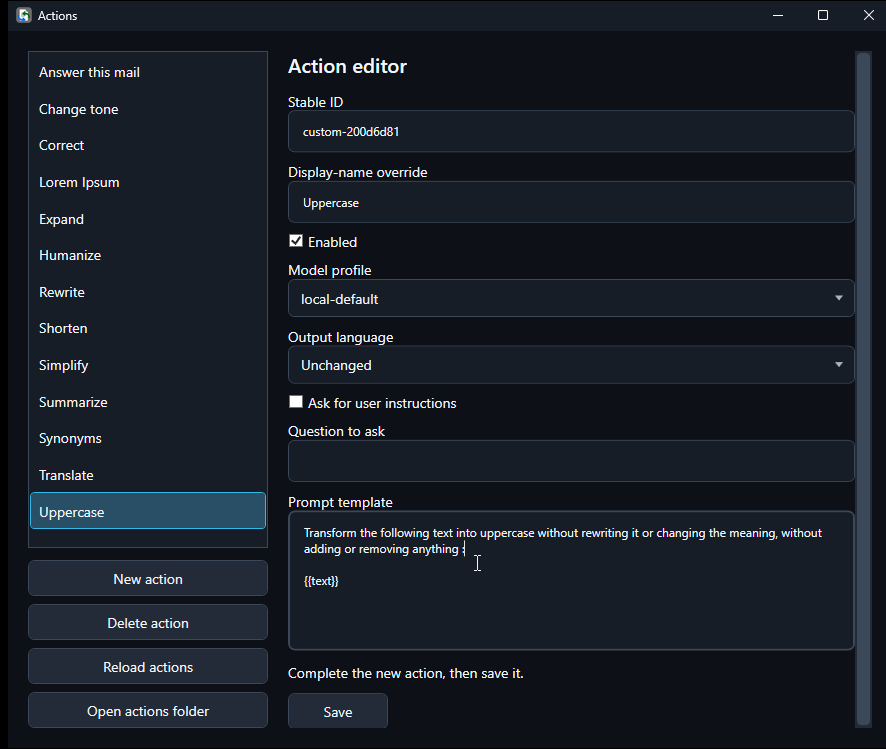
Rewrite the following text as one clear sentence. Keep its meaning: {{text}}. Choose the model profile you want that action to use. To ask about tone, enter What tone should I use? in Question to ask and add Use this tone: {{answer}}. to the prompt.Use Enabled to control whether an editable action is available. Delete action removes a selected action after confirmation; Reload actions refreshes the list from saved action files. Open actions folder is available for users who want to inspect those files directly. The system-owned Translate action cannot be deleted.
Choose a connection per action
Each action names a preferred model profile. The built-in profiles are local-default, network-default, external-default for compatible API-key access, and openai-account-default for OpenAI sign-in. Configure each connection and its model in Settings.
What Default chooses
On Default, a valid requested local or network connection keeps its place. TextAid can use a lower category when the requested category is unconfigured, or the sole eligible category when it is the only one configured. For example, an External action can run locally when local is the only usable connection.
When normal routing selects External and both cloud access methods are active and eligible, Sign in with OpenAI takes preference, using its own selected model. This also applies when the action’s saved profile is external-default, and when the two External methods are the only available choices. A configured account with invalid credentials or missing permission produces guidance; TextAid does not silently switch to its API-key peer.
Override for one action
Use the workspace model selector to pin an exact configured connection and model for the next action. An explicit API-key choice takes priority over OpenAI sign-in; an explicit local choice takes priority over an action’s External profile. This temporary choice leaves saved action files and Settings unchanged. It returns to Default after the attempt.
After a runtime failure, any lower-category recovery remains your choice. A pinned choice fails on that exact connection; select another profile and start a new attempt to change providers.
Read the connection indicator
The indicator identifies the connection actually running or responsible for the displayed result. Hover over it to see the connection type and selected model. Its symbol distinguishes the type as well as its color:
| Connection | Symbol | Color |
|---|---|---|
| This device only | ⌂ | Green |
| On-premises | ⌁ | Amber |
| External API key | ◎ | Red |
| Sign in with OpenAI | ✦ | Violet |